Table Of Contents
Why Giving Your Child Their Own Phone (With Restrictions) Can Be Better Than Letting Them Use Yours
If you’re on the fence about giving your child their own phone, you’re not alone. Many parents think it’s safer or easier to just let their child borrow their phone when needed. But here’s the thing — it’s actually better for your child (and you) if they have their own device that you can control properly. Here’s why:
1. Full Parental Control Over Their Device
When your child has their own phone, you can set up all the parental controls we’ve talked about — like screen time limits, app restrictions, and content filters. If they’re using your phone, you can’t do this without also restricting yourusage.
With their own phone, you have full control over what apps they can download, what they can watch, and who they can message. It’s a win-win.
2. Stops Them From Accessing Your Private Information
When kids use your phone, they can accidentally (or intentionally) see your messages, emails, banking apps, and private photos. Imagine the embarrassment of your child accidentally sending a random voice note to your boss or liking an old Instagram post from 2012.
With their own phone, they only have access to their apps, contacts, and content. Your personal life stays private.
3. No Risk of Posting to Your Social Media
If you’ve ever handed your phone to a toddler, you’ve probably had that moment of panic when they’re one swipe away from posting a blurry photo to your Instagram story.
When kids use your phone, they can accidentally (or purposely) post to your social media. With their own device, there’s zero risk of your 9-year-old posting a selfie to your work LinkedIn account.
4. Safer Online Browsing
Kids are curious, and with unrestricted internet access on your phone, they could stumble across content that’s definitely not kid-friendly.
With their own phone, you can set up content filters and block inappropriate websites. You can’t do this on your own phone without restricting yourself too.
5. It Reduces “Borrowing Requests”
How many times have you been in the middle of something when your child asks, “Can I use your phone to watch something?” If they have their own phone with apps like Disney+ and YouTube Kids, you won’t constantly be handing over your device.
This is especially useful on family trips, in waiting rooms, or anywhere you’d normally give in just to get five minutes of peace.
6. Their Mistakes Won’t Cost You
Imagine your child buys an in-app purchase for £99 while using your phone. This happens a lot — and if it’s on your device, it’s your bank account being charged.
With their own phone, you can set up Ask to Buy permissions, so they can’t download or purchase anything without your approval. No surprise charges. No emergency calls to Apple Support.
Why I Pass Down Old Phones Instead of Buying New Devices for My Kids
When it came time to give my kids access to a device, I had a choice: buy them shiny new tablets or make use of something we already had. I chose the latter — and honestly, it’s one of the best parenting decisions I’ve made.
Here’s the thing: kids don’t need the latest iPhone or the newest tablet to access educational apps, message family, or watch Disney+. In fact, they’re often better off with a hand-me-down phone that’s a little older but still perfectly functional.
Here’s why I pass down old phones instead of buying new devices for my kids.
1. It’s Cheaper Than Buying New Devices
When iPods were the thing to have, I remember looking at the price tags and thinking, “There has to be a cheaper way.”That’s when I realised that an old iPhone can do pretty much everything an iPod could do — access educational apps, play music, stream Disney+, and send messages.
By passing down my old phones, I saved hundreds of pounds. Sure, they might not have the latest features or the biggest screens, but for what my kids need them for, they work perfectly.
2. They’re More Portable
Old iPhones are smaller and easier for kids to hold. They can slip them into their pockets or bring them on trips without me having to lug around extra devices. A pocket-sized phone is just as effective for educational apps, music, and Disney+ as a large tablet, but it’s so much more convenient to carry around.
This is especially helpful on family outings, long car journeys, or days when I just don’t want to be the family pack mule.
3. I Can Set Them Up Safely With Parental Controls
Hand-me-down phones aren’t just more affordable — they’re also more controllable. With Apple’s Family Sharing features, I can set up all the parental controls I need to make sure they’re only using the phone in safe, age-appropriate ways.
Since it’s their phone (not mine), I can:
- Block inappropriate content and apps.
- Limit screen time and app usage.
- Set Downtime to make sure phones aren’t used after bedtime.
- Require “Ask to Buy” permissions, so they can’t download apps without my approval.
If they were using a tablet or my phone, I wouldn’t have this level of control.
4. It Keeps My Phone For Me
If you’ve ever handed your phone to your child “just to keep them busy,” you already know how frustrating it is to get it back and find 27 blurry photos of the ceiling in your photo roll. Or worse, they’re one tap away from posting a random video to your Instagram Story.
When my kids have their own devices, my phone stays mine. No more handing it over “just for 5 minutes” only to have them accidentally FaceTime your boss.
5. They Learn to Look After Their Own Device
There’s something about owning their own device — even if it’s a secondhand phone — that teaches kids a little responsibility. They know it’s their device, and they’re much more likely to take care of it than they would if it were just “Mum’s phone.”
If the phone is a hand-me-down, I also feel more relaxed if it gets dropped or scratched. It’s not a £1,000 brand-new iPad. It’s an old iPhone that’s already had a full life. And if they break it, well, that’s part of the learning process too.
6. They’re Still Good Enough for What Kids Need
Kids don’t need the latest iPhone 15 to play maths games or watch Disney+. They just need a device that works. If the apps load, the music plays, and the screen lights up — it’s good enough.
Honestly, I’ve found that using an older phone has actually helped curb some of the “I want the new one!” pressure that kids face. Since they know they’re using a hand-me-down device, they’re less focused on having the latest model. It sets the tone for being more content with what they have.
7. It’s an Eco-Friendly Choice
I like the idea of reducing waste by reusing what we already have. Instead of sending old phones off for recycling (where, let’s be honest, they might just sit in a warehouse for years), I’m giving them a second life.
Passing down old phones helps reduce e-waste and teaches kids the value of reusing things instead of always wanting “brand new.” It’s one small way I feel like I’m doing my part for the planet.
How To Set It Up
If you’re thinking about passing down your old phone to your child, here’s what I recommend:
- Wipe the phone to delete all your personal data (Settings > General > Transfer or Reset iPhone > Erase All Content and Settings).
- Set up a new Apple ID for your child (or add them to Family Sharing).
- Turn on Screen Time to set limits on apps and daily usage.
- Activate Ask to Buy so they can’t download apps without your permission.
- Customise content filters to block age-inappropriate websites, movies, and apps.
Bottom Line
Passing down old phones to my kids instead of buying new iPads or tablets has saved me so much money over the years. It’s cheaper, more practical, and, most importantly, safer. With parental controls, Ask to Buy, and downtime settings, I know they’re using their phones in a way that works for them — and for me.
So if you’ve got an old phone gathering dust in a drawer, consider giving it a second life with your kids. It’s an easy way to save money, teach responsibility, and reduce waste — and you might just save yourself from another round of “Can I borrow your phone?”
How To Set Up iPhone Parental Controls (Step-By-Step Guide)
I’ll walk you through exactly how to set up parental controls on an iPhone to protect your kids.
(If you have an Android phone, I’m sorry I can’t show you the exact steps, but similar controls do exist. It’s definitely worth looking into.)
1. Set Up Screen Time
This is where all the magic happens. Screen Time is a built-in feature on iPhones that helps you track and control usage. Here’s how to set it up:
- Open Settings on your child’s phone.
- Tap Screen Time.
- If it’s not already on, tap Turn On Screen Time.
- Select This is My Child’s iPhone.
This step will give you access to all the settings we’ll cover below, like content limits, app time limits, and downtime.
2. Set Content & Privacy Restrictions
This step stops your kids from downloading random apps or seeing content that isn’t age-appropriate.
- Go to Settings > Screen Time > Content & Privacy Restrictions.
- Turn on Content & Privacy Restrictions at the top.
- Set rules for:
- App Downloads (prevent kids from downloading without permission)
- Explicit Content (block inappropriate music, TV shows, and movies)
- Web Content (block adult websites)
This feature alone is a total game-changer. It prevents kids from downloading new apps without your approval.
3. Set Time Limits For Apps
If you’ve ever seen your kids glued to TikTok for hours, this is the setting you need. You can set daily time limits for individual apps. Here’s how:
- Go to Settings > Screen Time > App Limits.
- Tap Add Limit.
- Select categories like Social Media or specific apps like YouTube or TikTok.
- Choose how much time they can use each day (e.g., 1 hour per day).
Once their time is up, the app locks. No arguments, no begging for “just 10 more minutes.” The app is done for the day.
4. Set Downtime
This is how I stop phones from being used after bedtime. Here’s how you do it:
- Go to Settings > Screen Time > Downtime.
- Choose the times you want phones to be “off” (e.g., 8 PM to 7 AM).
Even if the phone is still on, most apps won’t work. The only exceptions are the ones you choose.
5. Ask To Buy (Stop Kids Downloading Apps Without You Knowing!)
With Family Sharing, kids have to ask for permission before they download an app. You get a notification on your phone to approve or deny the request.
- Open Settings > Your Name > Family Sharing.
- Tap Ask to Buy and toggle it on.
No more random apps showing up on your child’s phone.
6. Communication Limits
You can control who kids can contact and when. For example, you might only allow them to message family after bedtime.
- Go to Settings > Screen Time > Communication Limits.
- Set limits for During Screen Time and During Downtime.
This is especially helpful during sleep hours or school time.
But Will It Really Work? (What If Kids Try To Get Around It?)
Here’s what I hear a lot:
“My kids will just find a way around it.”
Honestly, kids are clever, but Apple is clever too. If you set a custom Screen Time passcode, they can’t turn these settings off. So unless they’ve cracked your passcode, you’re safe.
Why It’s Worth It
Since setting up these controls, I feel like I can actually trust my kids with their phones. They can still access schoolwork, educational apps, and family messages, but I’m not worried about inappropriate content, endless scrolling, or surprise app downloads.
And remember my friend? After I helped her set up parental controls, she was so relieved. She said, “Why didn’t anyone tell me about this sooner?!” I hear this all the time.
Take Action Today
If you’ve read this far, you know that setting up iPhone parental controls is one of the best things you can do as a parent. It takes a few minutes, and you get total peace of mind.
If you found this guide helpful, please share it with a friend who might need it. It could be a total game-changer for them too.
If you’ve got any questions about how to set up parental controls, drop a comment below. I’d love to hear from you.
You’ve got this. You do have control.
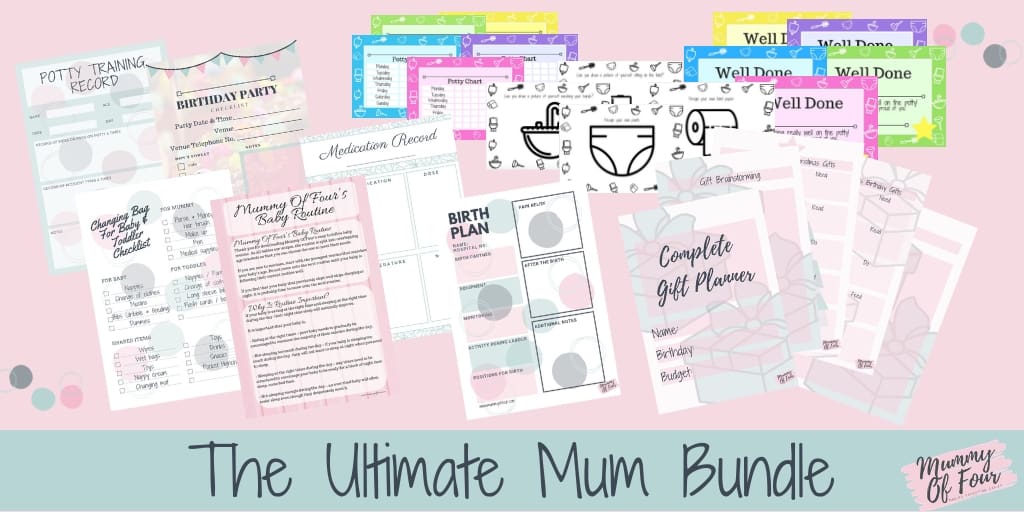
Get My Free Ultimate Mum Bundle Now
Join my email club and get your hands on my free “Ultimate Mum Bundle” of organisation printables.
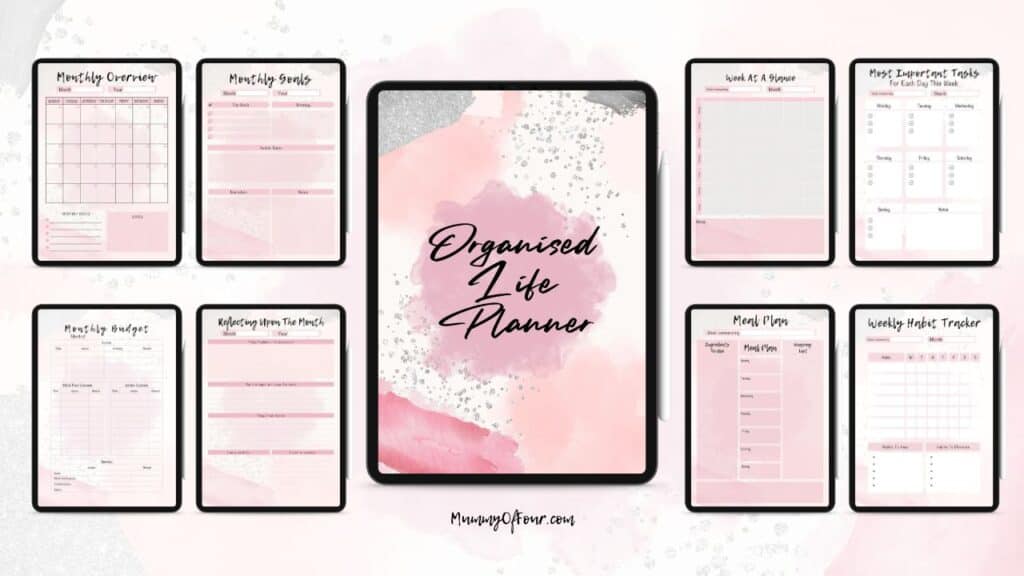
Shop The Organised Life Planner
Join Me In Patreon

Read It Next